Commerce Booking: online booking with M-Pesa deposits

Let clients book online and pay a deposit by M-Pesa.

A booking page that is open all day, every day. Clients pick a slot and pay an M-Pesa deposit to confirm it.
Salons & BarbershopsNail StudiosSpas & Wellness CentresMedical ClinicsPhysiotherapistsDental PracticesPhotographers & StudiosPersonal TrainersTutors & CoachesVeterinary ClinicsAnd more…
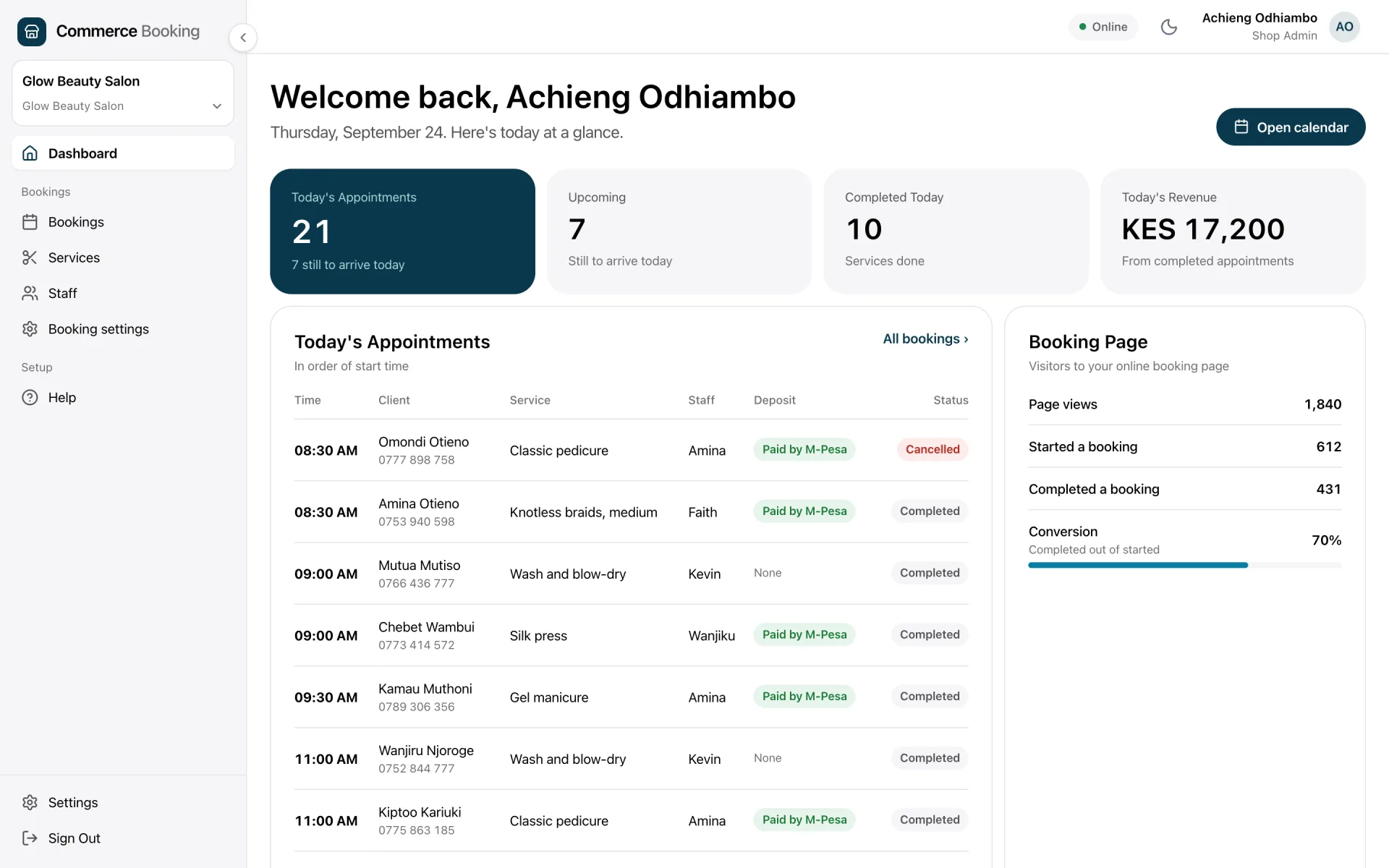
The Commerce Booking dashboard for a Nairobi salon, showing today's appointments, M-Pesa deposits and takings
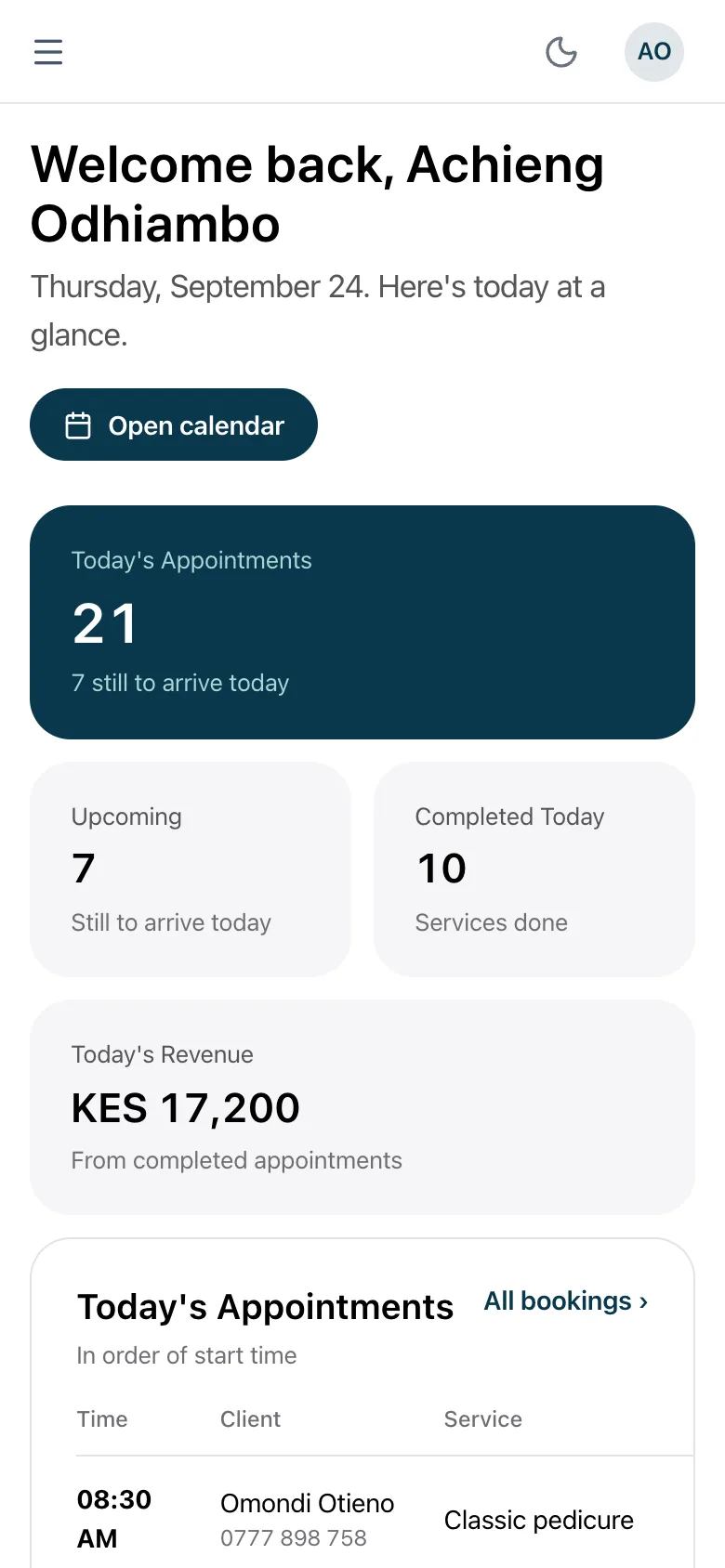
The same booking dashboard on a phone

Screenshots of the real app, filled with sample data.

Up and running in 3 steps

  1. 1

    Set up your services

    Add your service menu with names, durations, prices, and which staff member handles each. Takes under 10 minutes.

  2. 2

    Share your booking link

    You get a custom public booking page when you set up your account. Put it on Instagram, WhatsApp, or your website. Clients can book at any hour.

  3. 3

    Get paid & show up

    Clients pay an M-Pesa deposit to confirm. Your calendar fills up with serious, committed appointments. You show up, they show up.

Everything your booking business needs

Always-On Booking Page

Clients pick a service, a staff member and a time, from any phone, at any hour.

M-Pesa Deposit Collection

An STK Push confirms the slot. The deposit comes off the bill at checkout.

Staff Scheduling

Set each person's days, hours and services. Clients choose who they book with.

Automated Email Reminders

A receipt when they book and a reminder before they come.

Bookings Dashboard

Filter by staff, service or date. Mark each one completed, cancelled or no-show.

No-Show Protection

Only clients who pay a deposit get a slot, and your cancellation policy shows before they book.

Service & Pricing Management

Unlimited services with durations and deposits. Pause one without deleting it.

Booking Reports & History

Bookings, revenue and no-show rate at a glance. Export to Excel.

Also Need a POS?

Commerce Booking works as a standalone system. But if you also sell physical products, the WebpinnPOS Standard plan includes the Bookings module as an add-on for KES 500/month extra.

View POS plans

Built for every service business in Kenya

If clients need to schedule time with you, Commerce Booking handles it.

Salons & BarbershopsNail StudiosSpas & Wellness CentresMedical ClinicsPhysiotherapistsDental PracticesPhotographers & StudiosPersonal TrainersTutors & CoachesVeterinary Clinics

How-To Guides

Step-by-step instructions for every part of Commerce Booking.

Set up your booking page

Go live with your public booking link in under 10 minutes.

5 steps
  1. Sign up at webpinnpos.com/register. Select Commerce Booking.
  2. Go to Settings → Booking Settings and fill in your shop name, description, and timezone.
  3. Upload your logo or profile photo.
  4. Toggle 'Booking Page Live' to ON.
  5. Your public page is live at webpinnpos.com/book/[your-slug]. Copy and share the link.

Add services and set prices

Define what clients can book, how long it takes, and the deposit amount.

5 steps
  1. Go to Services in the sidebar.
  2. Click 'Add Service' and enter the name, duration (e.g. 60 min), and full price.
  3. Set a deposit amount. This is what clients pay via M-Pesa to confirm the booking.
  4. Assign the service to one or more staff members.
  5. Click Save. The service is immediately available on your public booking page.

Add staff and set availability

Control which staff appear on your booking page and when they are bookable.

5 steps
  1. Go to Staff under the Bookings section in the sidebar.
  2. Click 'Add Staff Member' and fill in their name, role, and email.
  3. Open their profile and set their weekly working schedule (days and hours).
  4. Assign services to them so clients can choose which staff member handles each service.
  5. Staff can also log in to manage their own schedule via 'My Schedule'.

View and manage bookings

See all upcoming appointments and keep your calendar organised.

5 steps
  1. Go to Bookings in the sidebar.
  2. You'll see all upcoming appointments with client name, service, time, and deposit status.
  3. Click any appointment to confirm, reschedule, or cancel it.
  4. Clients receive an automatic email notification when their booking status changes.
  5. Filter by staff member, service, or date to find specific bookings quickly.

Collect M-Pesa deposits

Require upfront payment to eliminate no-shows.

5 steps
  1. Set a deposit amount on each service (fixed KES amount or %).
  2. When a client books, they enter their Safaricom number and receive an M-Pesa STK Push.
  3. They enter their PIN. Payment is confirmed automatically within seconds.
  4. The deposit is recorded against the booking in your dashboard.
  5. At checkout, the deposit is deducted from the final service bill.

Convert a booking to a sale

Charge the remaining balance when the client arrives.

5 steps
  1. Open the completed appointment in the Bookings section.
  2. Click 'Convert to Sale'.
  3. The remaining balance (total price minus deposit) is pre-filled.
  4. Choose the payment method for the balance (cash, M-Pesa, card).
  5. Confirm. The transaction is recorded in your reports.

Two plans, each at one flat monthly price.

Start free for 14 days. No credit card required.

Commerce Booking

A complete booking system that works on its own, without the POS.

KES 1,000/month

Or KES 10,000 per year 2 months free

Start free trial
  • Public online booking page
  • M-Pesa deposit collection (STK Push)
  • Unlimited services & categories
  • Staff scheduling & per-staff service assignment
  • Automated email confirmations & reminders
  • Booking dashboard & calendar view
  • No-show deposit protection
  • Booking history & Excel export
  • 14-day free trial with no credit card
Best value for bookings and retail

Commerce Booking + POS

Bookings together with the full point of sale.

KES 2,000/month

Or KES 20,000 per year 2 months free

Start free trial
  • Everything in Commerce Booking
  • Full POS that takes cash, M-Pesa STK Push and card
  • Convert completed bookings to POS sales instantly
  • Product & stock management
  • Customer profiles & loyalty points
  • Cash float & shift reconciliation
  • Sales reports & Excel export
  • Barcode scanner & thermal printer
  • Offline mode with auto-sync

Already on a WebpinnPOS retail plan? Add the Bookings module to it for KES 500 a month. See pricing

Not sure which plan fits? Chat with us

Ready to fill your calendar?

Most businesses are live the same day. Share your booking link and start collecting M-Pesa deposits before your first client walks in.

14-day free trial. No credit card required.  •  Already have an account? Sign in here  •  Questions? Chat with us on WhatsApp

Frequently Asked Questions

Do I need a POS subscription to use Commerce Booking?
No. Commerce Booking is a fully standalone product. You get the complete booking system, M-Pesa deposits, staff scheduling, automated reminders, and your public booking page, without needing to subscribe to the POS.
How does the public booking page work?
When you sign up, you get a custom branded booking page link. Clients visit the link, pick a service, choose a staff member and time slot, then pay the M-Pesa deposit to confirm. The booking appears in your dashboard instantly.
How do M-Pesa deposits work?
When a client selects a service and time, they enter their Safaricom number. An M-Pesa STK Push is sent directly to their phone. They enter their PIN to pay the deposit, and the system confirms automatically.
Can I set different deposit amounts per service?
Yes. You control the deposit amount for each service independently. The deposit is displayed clearly on the booking page before the client commits.
How does staff scheduling work?
You add your staff members in the dashboard and assign which services each one offers. Each staff member has their own calendar so appointments don't overlap. Working alone? Just add yourself as the only staff member.
How long does it take to set up?
Most businesses are live within the same day. Start your free trial and we're available on WhatsApp throughout the setup to guide you if you run into anything.
Is there an app I need to install?
No app required. Commerce Booking runs entirely in your browser. Your booking page for clients is also a mobile-optimised web page, so clients can book from any phone without downloading anything.